How to display EIPs
To display a list of Locations use the following link to access the database:
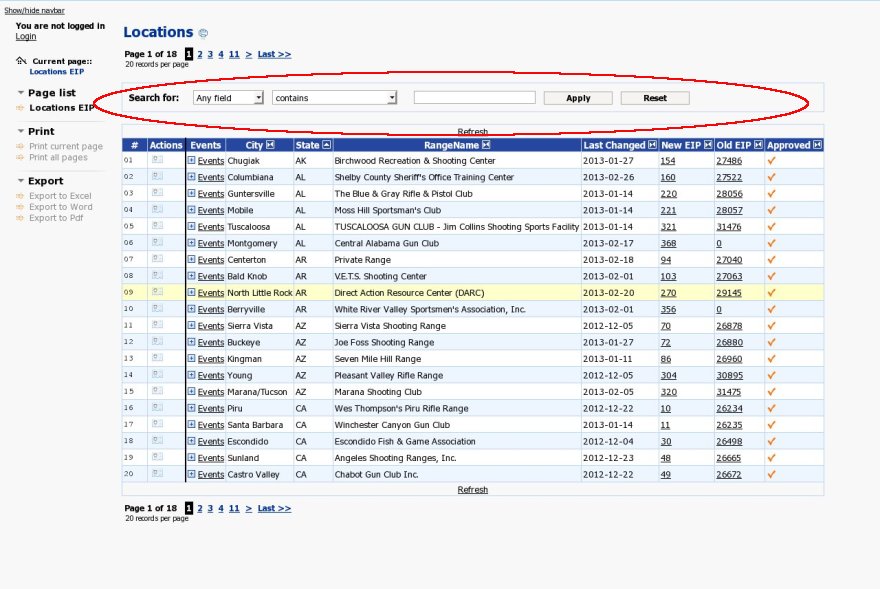
You will then see a list of All of the Locations (Ranges) that have had a shoot in the last several years.' I have circled in red areas of interest on each screenshot. Right now the list of locations is sorted by the 'City Column.' Notice how each Column has a square box next to the column name. The square boxes allow you to Sort a column. By clicking the sort box next to a column name the column will be sorted. You can even click the sort box for a column a second time and the column will the be Reverse sorted. For instance using a reverse sort the cities would be sorted from Z to A instead of A to Z.

You can also search by City, State, RangeName and other items using the Search function.
The are 5 areas associated with searching for things. Going from left to right in the search boxes are:
1. Search for 'field': This specifies what to search for. Currently Search for specifies 'Any Field' which just means search for some text in city, state, range name, etc. However 'Any field' will usually give you more locations than you want. This is a drop down box and you can select city, state, etc. Usually you'll want to search by city, state, or range name.
2. contains - another drop box. You can select 'contains, equals, greater than, etc. Your best bet usally is 'contains' though since it is easier to use. Feel free to experiment with it but you'll most likely wind up using contains 99% of the time.
3. A blank text entry box - You can type whatever it is you are searching for in the text box.
4. Apply button - This applies the search so that whatever you are searching for will then be displayed.
5. Reset - This Resets things back to normal. In other words any search filters are removed and you will see a full list of locations again. You will also use this so that if a search you have applied goes haywire you can start over. If you are having problems where no ranges appear - CLICK Reset!
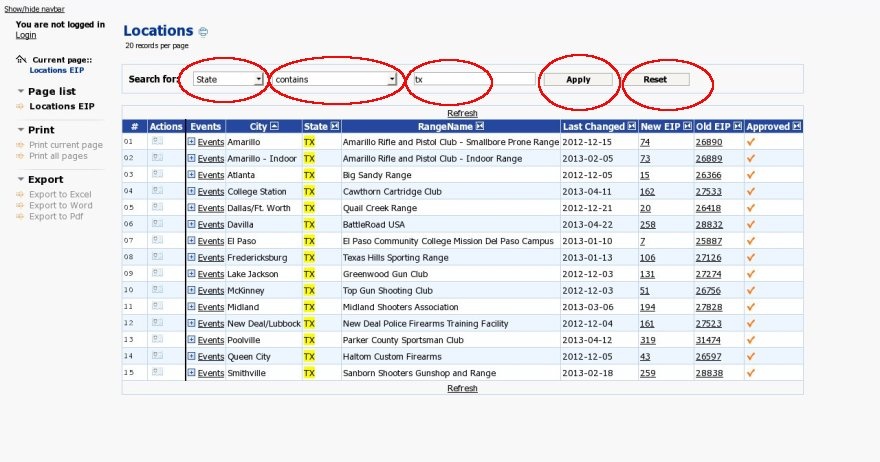
Here I've done a search of all Texas locations.
Please notice that State 2 Character codes are used, not a full state name. I've selected 'State' on the Search for drop down, contains, entered 'tx' (not case sensitive) and then clicked Apply. I then see a list of Texas shoots. When I'm done looking at Texas shoots I can just click Reset.
List the Events for a Location
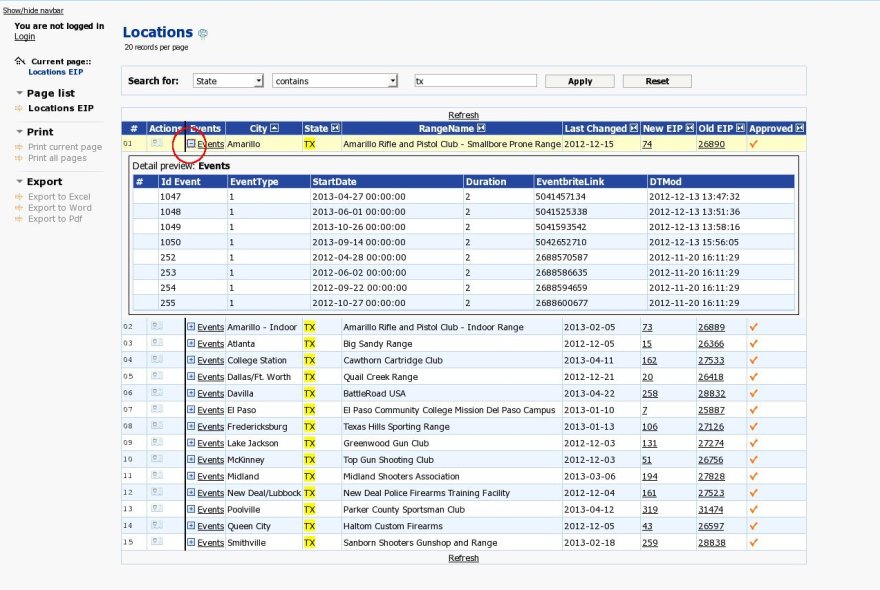
You can also see Events (Shoots) that a location has held within the last two years. Notice that on each row for a location is a box with a Plus sign inside it. If you click the box a list of events that have been held for that location will appear. The plus sign also changes to a Minus sign. Click the Minus sign and the list of Events will disappear.
See what the EIP will look like
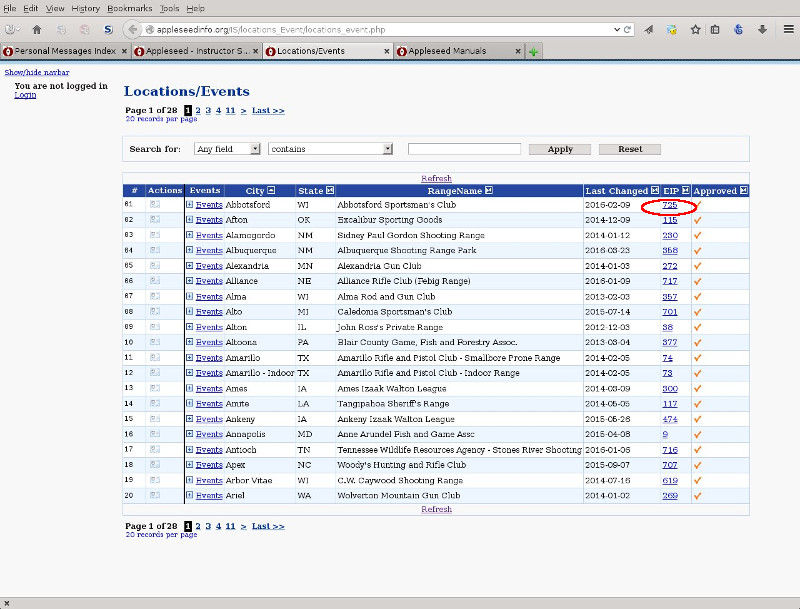
You can also see what the EIP for a location will look like by clicking on the link on the 'EIP' column.